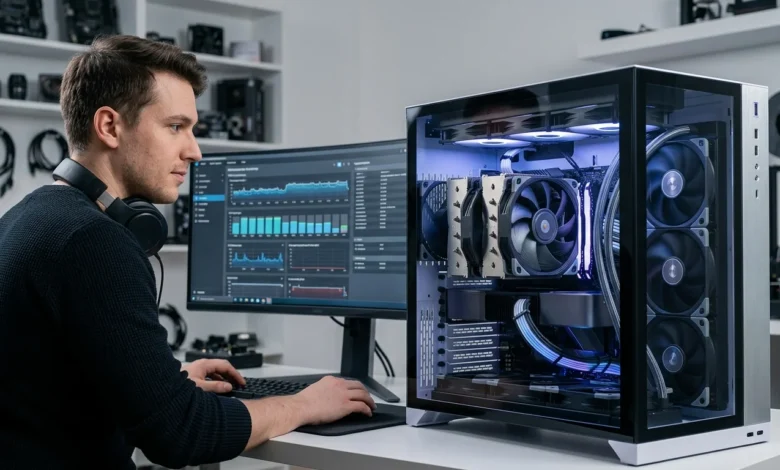
Knowing the normal CPU temperature range helps you spot cooling problems before they affect performance. Most desktop processors idle around 30–50°C and run warmer during demanding work. Gaming and sustained workloads often push modern chips into the 60–85°C area.
Those numbers are useful guidelines, but they aren’t universal safety limits. Processor design, cooling, room temperature, and workload all affect the reading. Your processor’s official maximum temperature remains the most important reference.
Quick answer: A modern desktop processor commonly runs around 30–50°C at idle and 60–85°C during gaming or demanding work. Sustained temperatures near 90°C deserve closer attention on many systems. Still, some processors are designed to approach 95–110°C under heavy workloads before thermal protection activates.
CPU Temperature Range at a Glance
| Usage condition | Typical desktop range | Fahrenheit | What it generally means |
|---|---|---|---|
| Idle | 30–50°C | 86–122°F | Normal for many desktops |
| Browsing and light work | 40–65°C | 104–149°F | Usually normal |
| Gaming | 60–80°C | 140–176°F | Common under sustained load |
| Rendering and heavy work | 70–85°C | 158–185°F | Normal for many cooled systems |
| 85–95°C | 185–203°F | Warm | Check model limits and cooling |
| Near Tjmax | Model-specific | Varies | Thermal controls may begin |
These ranges describe common desktop behavior rather than guaranteed limits. Recent temperature guides show similar bands across modern hardware. Laptop processors can operate noticeably hotter because compact chassis restrict airflow.
Key Takeaways
- Idle desktop temperatures around 30–50°C are common.
- Gaming temperatures around 60–80°C are usually reasonable.
- Heavy workloads may raise readings into the 70–85°C range.
- A sustained 90°C reading needs context before you assume something is wrong.
- Manufacturer Tjmax specifications matter more than a generic temperature chart.
- High idle temperatures deserve more attention than brief load spikes.
What Is a Normal Processor Temperature at Idle?
A desktop computer sitting idle commonly reports temperatures between 30°C and 50°C. Background programs can cause brief jumps even when you aren’t actively using the machine. Room temperature and cooler quality can also shift the baseline.
A processor idling at 55°C isn’t automatically failing or unsafe. Warm rooms, compact cases, quiet fan profiles, and background tasks can explain higher readings. A persistent change from your system’s normal baseline matters more than one isolated number.
Suppose your desktop previously idled near 38°C but now stays near 60°C. That change may indicate dust buildup, a failing fan, or poor cooler contact. It could also mean a new program is using processor resources in the background.
TechZena’s guide to software bloat and excessive resource use explains how unnecessary applications can increase system demand. That extra processor activity can increase heat even during apparently light use. Checking Task Manager can help identify programs creating that load.
What Temperatures Are Normal While Gaming?
Gaming usually creates more heat because processors repeatedly handle game logic and background processes. A range around 60–80°C is common for many desktop gaming systems. Some demanding games or compact PCs can push temperatures higher.
You should judge the reading alongside clock speed, workload, fan behavior, and the processor’s specifications. A stable 82°C during a demanding game may be acceptable for one chip. The same temperature while sitting at the desktop deserves investigation.
Short temperature spikes are also different from sustained readings. Modern processors change clock speeds rapidly as workloads appear and disappear. A brief spike into the upper range doesn’t necessarily mean the cooler is failing.
How Hot Can a Processor Safely Run?
There isn’t one maximum temperature that applies to every Intel or AMD processor. Intel says its maximum junction limit varies by product. Its support documentation says many products use limits between 100°C and 110°C.
AMD also publishes model-specific maximum operating temperatures. For example, several current Ryzen desktop processors list a 95°C Tjmax. That number is a product limit rather than an ideal temperature target.
This distinction prevents unnecessary concern when checking modern hardware. A chip approaching its designed thermal ceiling under an extreme workload can be operating as designed. Continuous high temperatures still deserve attention when they reduce performance or differ from normal behavior.
What Is Tjmax and Why Does It Matter?
Tjmax is the processor’s maximum junction temperature before thermal controls limit heat. Intel explains that reaching this threshold can reduce power and operating frequency. That behavior helps keep the processor within its thermal design limits.
Thermal throttling can therefore appear as lower clock speeds or reduced performance. It doesn’t automatically mean permanent damage has occurred. Intel processors also include shutdown protections when throttling cannot control excessive heat.
Always check the specification for your exact processor instead of copying another user’s limit. Even processors from the same brand can have different thermal specifications. Laptop manufacturers may also configure systems around different cooling and power limits.
Desktop and Laptop Temperatures Are Different
Laptops often run hotter because their cooling systems operate within smaller spaces. Thin machines have limited heatsink area and smaller fans. They may also share cooling hardware between the processor and graphics hardware.
Real-world temperature data illustrates this difference. ThermalStats reports higher median idle and load readings for laptops than desktops in its user test data. Its results show laptop readings approaching the upper 80s under load are relatively common.
That doesn’t mean every laptop running near 90°C is automatically healthy. Compare the reading with the manufacturer’s specifications and your machine’s usual behavior. Unexpected throttling, shutdowns, or dramatic performance drops deserve closer inspection.
If you’re diagnosing a portable computer, also check TechZena’s laptop battery health guide. Battery condition and processor heat are separate issues, but both affect laptop troubleshooting. Checking both can give you a clearer picture of overall system health.
How to Check Your Processor Temperature
Windows doesn’t present detailed processor temperatures in the main Settings application. Third-party monitoring programs can read the processor’s built-in thermal sensors. BIOS or UEFI screens can also show a temperature reading on many motherboards.
Programs such as HWiNFO, Core Temp, and HWMonitor are commonly used for monitoring. Watch the temperature while performing the activity you’re concerned about. An idle BIOS reading doesn’t tell you how hot the processor becomes while gaming.
Measure temperatures under consistent conditions whenever possible. Record the room temperature, workload, and peak reading during each test. This approach makes changes easier to recognize after cleaning or adjusting cooling.
Signs Your Processor May Be Running Too Hot
A high number alone doesn’t prove that your computer has a cooling failure. The processor’s workload and official thermal limit provide essential context. Performance behavior can provide another useful clue.
Watch for several symptoms appearing together.
- Persistent temperatures near the processor’s limit
- Lower clock speeds during sustained workloads
- Sudden performance drops
- Fans running at maximum speed for long periods
- Unexpected restarts or shutdowns
- Temperatures that remain unusually high during idle use
Intel confirms that thermal controls can lower frequency and power when temperature limits are reached. Its processors can also shut down if thermal controls cannot maintain safe operation. These protections reduce overheating risk but shouldn’t replace proper cooling.
How to Lower High Processor Temperatures
Start by checking airflow before replacing expensive hardware. Make sure case vents aren’t blocked and confirm every cooling fan spins properly. Dust buildup on filters, heatsinks, and radiators can reduce heat removal.
Next, inspect the processor cooler and its mounting pressure. Poor contact between the cooler and processor can raise temperatures quickly. Old or poorly applied thermal paste can also reduce heat transfer.
Fan settings are another useful place to look. A quiet fan profile may allow higher temperatures before increasing fan speed. Adjusting the fan curve can trade more noise for lower temperatures.
Also inspect the applications running on your computer. Programs using processor resources in the background generate heat even without visible activity. Removing unwanted background software can reduce both processor demand and power consumption.
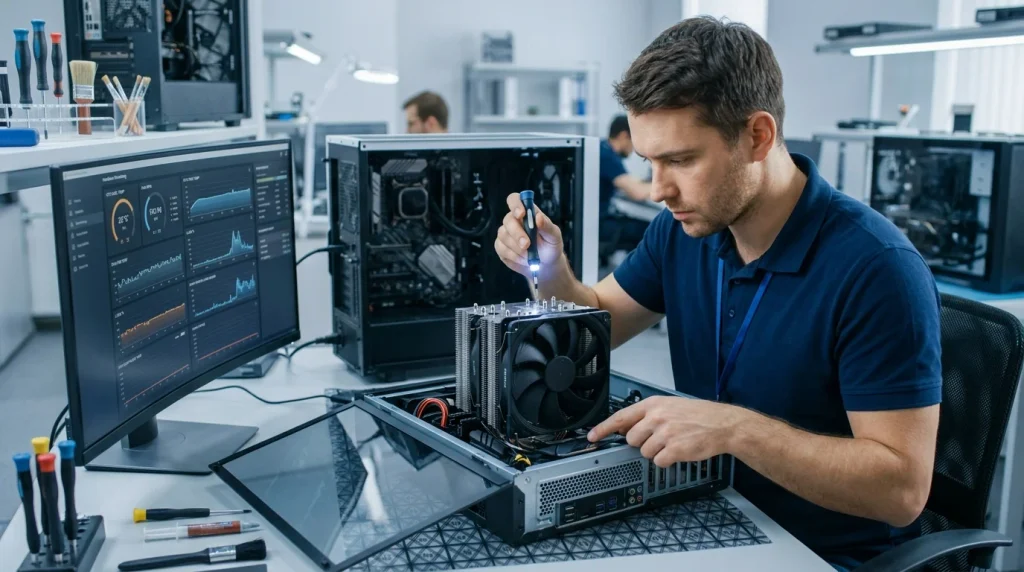
For persistent overheating, professional hardware inspection may be appropriate. A professional computer repair service covers hardware diagnostics and overheating problems. That is especially useful if you’re uncomfortable removing a cooler or opening a laptop.
Celsius vs. Fahrenheit for Processor Temperatures
Most hardware monitoring utilities display Celsius because processor specifications use that scale. U.S. users may still prefer Fahrenheit for everyday temperature comparisons. Converting the readings makes unfamiliar numbers easier to understand.
A 50°C reading equals 122°F, while 80°C equals 176°F. A reading of 95°C is 203°F. These figures can sound alarming in Fahrenheit even when the chip remains inside its rated operating limit.
For troubleshooting, keep your monitoring software set to Celsius. That makes comparisons with Intel and AMD specifications simpler. You can convert readings afterward if Fahrenheit is easier to interpret.
Frequently Asked Questions
What is a safe CPU temperature range?
For many desktops, roughly 30–50°C at idle and 60–85°C under demanding use are practical reference ranges. Your processor may be designed to run hotter during heavy workloads. Always compare readings with its official maximum junction temperature.
Is 80°C too hot for a processor?
An 80°C reading during gaming or heavy work is normal for many modern systems. It deserves more attention if the computer is nearly idle. Workload and the model-specific thermal limit determine whether the reading is concerning.
Is 90°C dangerous?
A sustained 90°C reading is warm, but it isn’t automatically dangerous. Some modern processors are designed to operate near higher thermal limits during demanding workloads. Check the exact Tjmax and watch for throttling or unusual performance.
Is 100°C too hot?
That depends entirely on the processor. Intel says many products have maximum junction limits between 100°C and 110°C. Other processors use lower thresholds, so model-specific specifications are essential.
Why is my processor hot while doing nothing?
Background software, dust, poor airflow, fan settings, or cooler problems can raise idle temperatures. First check Task Manager for unexpected processor usage. Then inspect the cooling system if the reading remains abnormally high.
Use Your Processor’s Limit, Not One Magic Number
The CPU temperature range shown in a generic chart should be treated as a troubleshooting reference. Your workload and specific processor model determine what temperatures are expected. Manufacturer specifications provide the final limit that matters most.
Start by measuring temperatures at idle and during the workload you use most. Compare those results with the processor’s official Tjmax and your computer’s previous behavior. Investigate persistent changes, throttling, shutdowns, or unusually high idle readings.
Regular monitoring can help you catch dust, cooling problems, and unusual processor usage early. Clean airflow paths and confirm fans operate correctly before making larger hardware changes. If heat problems persist, inspect the cooler or seek qualified repair support.