How to Check Laptop Battery Health on Windows, Mac, and Chromebook in 2026: The Complete Step-by-Step Guide to Battery Capacity, Performance, and Lifespan

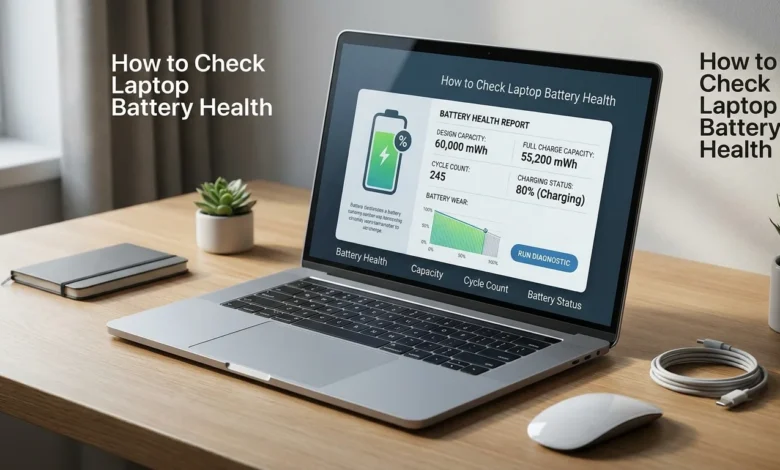
Knowing how to check laptop battery health can tell you whether shorter runtime is normal wear or a sign that service is approaching. Windows, macOS, and ChromeOS all provide built-in ways to see useful battery information without installing questionable utilities. The key is knowing which numbers matter and what they mean. Also worth reading: GoAir PNR Status.
| Platform | Best built-in method | Key information to check |
|---|---|---|
| Windows 11/10 | powercfg /batteryreport | Design capacity, full charge capacity, cycle count, capacity history |
| macOS | System Settings and System Information | Battery condition, maximum capacity, cycle count |
| Chromebook | ChromeOS Diagnostics | Battery health, cycle count, electrical current |
| Any laptop | Manufacturer diagnostics | Model-specific condition, charging, and hardware warnings |
Quick answer: The fastest method is to use the built-in battery tools in your operating system. Windows users can generate a Battery Report and compare Full Charge Capacity with Design Capacity. Mac users can review Battery Health and cycle count, while Chromebook users can open the Diagnostics app for health and cycle information.
Key Takeaways
| What matters | What it tells you |
|---|---|
| Full charge vs. design capacity | How much original storage capacity remains |
| Cycle count | How much cumulative battery use has occurred |
| Capacity history | Whether reported capacity is declining over time |
| Real-world runtime | Whether wear affects your daily use |
| Swelling or physical change | A safety issue that needs immediate attention |
What You’ll Need Before You Start
You usually don’t need to buy software or open the laptop to perform these checks. Make sure the computer starts normally and that you have access to its operating system settings or terminal. Keeping the charger nearby is useful if the battery already drains quickly.
| Device | What you need |
|---|---|
| Windows laptop | Command Prompt or Windows Terminal |
| MacBook | System Settings and System Information |
| Chromebook | ChromeOS Diagnostics |
| Dell, HP, Lenovo, ASUS, or other PC | Optional manufacturer diagnostic utility or BIOS/UEFI |
If your main concern is poor runtime, remember that software activity can affect how fast a healthy battery drains. Resource-heavy background programs can increaseincrease CPU usage and power consumption without changing the battery’s physical capacity. TechZena’s guide to software bloat explains how unnecessary software can consume system resources.
How to Check Laptop Battery Health on Windows 11 and 10
Windows includes a built-in Battery Report that provides more detail than the battery icon in the taskbar. Microsoft documents the powercfg /batteryreport command to generate an HTML report of battery usage characteristics. You can use the same report to compare original capacity with the amount the battery currently holds.
- Open Command Prompt. Open Start, search for Command Prompt, then choose Run as administrator.
- Generate the report. Enter powercfg /batteryreport and press Enter.
- Find the saved file. Windows displays the location of the generated HTML report in the Command Prompt window.
- Open the report. Use File Explorer to reach that location, then open the HTML file in your web browser.
- Read the battery data. Start with Installed batteries, then review capacity history, recent usage, and battery-life estimates.
The Installed batteries section normally shows Design Capacity and Full Charge Capacity when the hardware exposes those values. Design capacity represents the battery’s rated capacity when it was new, while full charge capacity reflects what it can currently hold. Some computers also report Cycle Count, though that field may be missing if the battery controller does not expose it to Windows.
The capacity-history section is useful because one reading does not always tell the full story. Comparing several entries can show whether the reported full-charge capacity is trending downward over time. Microsoft also notes that the report contains recent usage and battery usage information, which can help distinguish physical wear from day-to-day power consumption.
How to Calculate Your Battery Health Percentage
You can estimate the remaining capacity by dividing Full Charge Capacity by Design Capacity, then multiplying the result by 100. For example, a battery with a 45,000 mWh full-charge capacity and 60,000 mWh design capacity has roughly 75% of its original reported capacity. This calculation measures capacity loss, not the exact number of hours your laptop will run.
Battery capacity percentage = Full Charge Capacity ÷ Design Capacity × 100
| Result | Practical interpretation | What to do |
|---|---|---|
| Close to 100% | Little reported capacity loss | Keep using it normally |
| Around 80% | About one-fifth of original capacity is gone | Compare the result with runtime and manufacturer guidance |
| Well below 80% | More substantial capacity loss | Consider service if runtime no longer meets your needs |
| Any result with swelling | Percentage no longer matters | Stop using the device and arrange service |
Do not treat 80% as a universal pass-or-fail line for every Windows laptop. Battery specifications, warranty rules, firmware, charging limits, and manufacturer diagnostics can differ by model. A percentage becomes more useful when you consider it alongside runtime, cycle count, capacity history, and physical condition.
What Battery Cycle Count Tells You
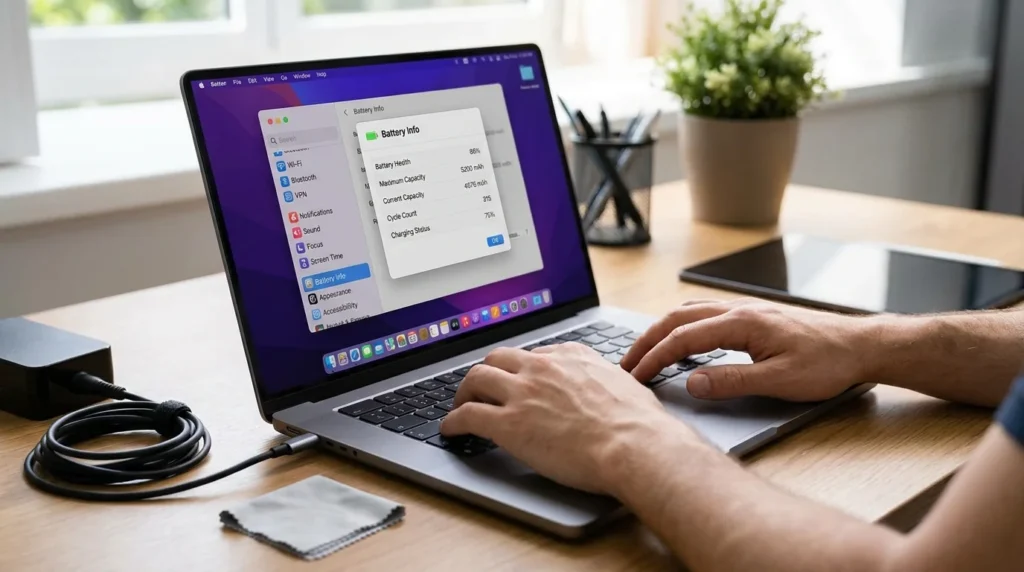
A charge cycle measures cumulative battery use rather than the number of times you connect the charger. Two separate 50% discharges can add up to roughly one complete cycle, for example. Apple explains the same principle in its current Mac battery documentation and publishes different maximum cycle counts for different models.
The Windows Battery Report may display cycle count under Installed batteries, but the value is not available on every PC. A missing or blank count does not automatically mean the battery has completed zero cycles. If you need model-specific data, check the laptop manufacturer’s diagnostic utility or BIOS/UEFI information.
Cycle count also should not be used alone to decide whether to replace a battery. A computer with a substantial number of cycles may still provide acceptable runtime, while another battery can develop problems earlier. Together, capacity, stability, manufacturer warnings, and physical safety signs provide a clearer picture.
How to Check Battery Health on a MacBook
On a current Mac, open the Apple menu > System Settings > Battery, then review Battery Health. Apple may show a condition such as Normal or Service Recommended, and supported models can display maximum capacity relative to when the battery was new. Apple’s current support guidance says that Service Recommended can mean reduced charge-holding capability or another battery-related issue.
For the cycle count, hold the Option key while opening the Apple menu, choose System Information, and select Power under Hardware. The Battery Information section displays the current cycle count when supported. Apple publishes model-specific limits, so check the limit for your exact Mac rather than assuming every MacBook has the same rating.
Apple states that supported Mac laptop batteries are designed to retain up to 80% of original capacity at their maximum cycle count under normal conditions. That reference should not be automatically applied to every Windows or Chrome OS laptop. Your manufacturer’s specifications should take priority when deciding whether a non-Apple battery requires replacement. Also worth reading: KMODE Exception Not Handled.
How to Check Battery Health on a Chromebook
ChromeOS provides one of the simplest built-in checks. Open Settings > About ChromeOS > Diagnostics, then view the Battery section for health, cycle count, and electrical-current information. Google’s Diagnostics tool is available on ChromeOS version 90 and later.
The Diagnostics app can also perform a discharge test to measure how the charge changes over a fixed period. Google advises contacting the Chromebook manufacturer if the results point to a battery or charging problem that troubleshooting does not resolve. This makes the built-in tool useful for both routine checks and troubleshooting unexpected drain.
Battery Health and Battery Life Are Different
Battery health describes the battery’s long-term ability to store energy compared with its original condition. Battery life typically refers to how long a computer runs during a session before needing another charge. A battery can be in decent condition and still drain quickly during gaming, video editing, heavy browser use, or other demanding workloads.
This distinction matters before you spend money on a replacement. Check Task Manager or your operating system’s energy information if runtime suddenly becomes poor but capacity still looks reasonable. Excessive CPU activity, high display brightness, background programs, and demanding applications can shorten runtime without proving the battery itself has failed.
If the problem appears to involve hardware rather than normal wear, broader troubleshooting may be useful. TechZena’s computer repair guide covers common hardware problems and considerations when professional service is needed. You can also browse TechZena’s hardware coverage for related computer-maintenance topics.
When Should You Replace or Service the Battery?
Reduced capacity by itself does not always mean the battery must be replaced immediately. Replacement becomes more reasonable when poor capacity is combined with a short usable runtime, abrupt charge drops, unexpected shutdowns, or a manufacturer service warning. Dell lists shorter runtime, sudden shutdowns, and abrupt changes in charge level as common signs of battery deterioration.
| Symptom | Recommended response |
|---|---|
| Shorter runtime but stable operation | Check capacity and monitor the trend |
| Sudden shutdowns with charge remaining | Run manufacturer diagnostics and consider service |
| Service Recommended or similar warning | Follow the manufacturer’s service guidance |
| Charge percentage drops abruptly | Check the report and manufacturer diagnostics |
| Case, keyboard, or trackpad begins lifting | Stop using the laptop and seek professional service |
| Visible battery swelling | Stop using and charging the device immediately |
A swollen battery differs from ordinary capacity loss because it can pose a physical safety risk. Microsoft advises stopping use if a deteriorated battery expands beyond the device enclosure and warns against puncturing or applying pressure to it. Do not keep using a swollen laptop while waiting for its capacity percentage to reach a certain number.
How to Slow Battery Wear After Checking It
Heat is one of the factors that can accelerate chemical aging, so keep ventilation paths clear and avoid unnecessary high-temperature use when possible. Modern devices may also provide charging controls that reduce time spent at a high state of charge. Microsoft and Apple both provide battery-management guidance designed to reduce long-term aging.
You do not need to obsess over every charging percentage during normal use. Use the charge-management features provided by your laptop maker, keep the operating system and firmware up to date, and avoid leaving the computer fully charged for long periods when the manufacturer advises otherwise. Check the reported capacity periodically so you can identify meaningful trends rather than reacting to a single reading.
Check the Numbers Before You Replace the Battery
A battery report gives you better evidence than the percentage next to the taskbar icon. Compare current capacity with design capacity, check the trend and cycle count, and then judge those numbers against real runtime and manufacturer warnings. If physical swelling appears, skip further testing and arrange safe service.
For more practical computer tutorials, browse TechZena’s how-to guides. The same approach works for many hardware problems: collect the system’s own diagnostic information before replacing parts. That can help you make a better repair or replacement decision.
Frequently Asked Questions
Unexpected shutdowns can occur when a worn battery can no longer provide stable power even though the displayed percentage has not reached zero. Dell includes sudden shutdowns and abrupt charge-level changes among signs that a battery may be approaching replacement. Generate a fresh report and run your manufacturer’s diagnostics before deciding whether the problem is the battery or another hardware issue.
Calibration may help the system estimate charge level more accurately on some devices, but it cannot reverse normal chemical aging inside lithium-ion cells. A reported capacity can shift when the battery-management system updates its estimate, so small changes do not prove that physical capacity returned. Persistent capacity loss should be judged with repeated readings, runtime, and manufacturer diagnostics.
An 80% result means the battery reports roughly four-fifths of its original design capacity. Apple uses 80% at the maximum cycle count as a design reference for supported Mac batteries, but that rule does not apply to every laptop. If the computer still provides adequate performance and shows no warning signs, the percentage alone does not warrant immediate replacement.
Windows users can generate a Battery Report with the built-in powercfg /batteryreport command. MacBook owners can use Battery settings and System Information, while Chromebook users can open ChromeOS Diagnostics. These tools provide enough information for most routine battery checks without adding another utility.