Seeing KMODE EXCEPTION NOT HANDLED usually means Windows encountered a serious kernel-level error. The problem commonly involves a faulty driver, system service, memory issue, or incompatible hardware. You can often fix it without reinstalling Windows.
Quick answer: Start by checking whether the blue screen names a driver. Then update, roll back, or remove that driver. If Windows keeps crashing, boot into Safe Mode and check system files, memory, recent hardware changes, and BIOS settings. Work through these fixes individually so you can identify the actual cause.
| Key detail | Information |
|---|---|
| Stop message | KMODE EXCEPTION NOT HANDLED |
| Bug check | 0x0000001E |
| Affected systems | Windows 11 and Windows 10 |
| Common causes | Drivers, system services, RAM, hardware, BIOS issues |
| First action | Note any driver or.sys file shown |
| Safe Mode useful? | Yes |
| Reinstall Windows first? | No |
What Does KMODE Exception Not Handled Mean?
Microsoft identifies this blue-screen error as bug check 0x0000001E. It means a kernel-mode program generated an exception that Windows couldn’t handle. Windows then stops the system because continuing could cause further problems. Device drivers operate with deep access to Windows and connected hardware. A faulty or incompatible driver can therefore trigger this type of system crash.
Microsoft also identifies system services and hardware-related problems as possible causes. The stop code alone does not identify the defective component. A driver name shown with the error provides a much stronger clue. Crash dump details and Windows logs can also help narrow the problem.
Common Causes of the KMODE EXCEPTION NOT HANDLED Error
A recently installed or updated driver is one of the first things worth investigating. Graphics, network, storage, USB, and chipset drivers can all operate at low system levels. Problems with these components may cause Windows to stop unexpectedly. Hardware can produce similar symptoms. Unstable memory, newly installed devices, incompatible components, or BIOS issues can contribute to bug check 0x1E.
Recent hardware changes deserve attention if the crashes began soon afterward. System corruption can also complicate troubleshooting. Damaged Windows files may affect services or other operating system components. Repairing those files can help after you check more obvious driver problems.
How to Fix KMODE Exception Not Handled
Use the following fixes in order when possible. Test the computer after each significant change. This approach helps you determine which change solved the problem.
1. Check the Blue Screen for a Driver Name
Look closely at the blue screen before restarting your computer. Windows may display a filename ending in .sys near the stop message. Take a photo if the computer restarts too quickly. A named driver gives you an immediate troubleshooting lead. Search for the filename and determine which device or software package uses it. Avoid downloading replacement drivers from unknown driver-download websites.
Get the correct driver from Windows Update or the hardware manufacturer’s support page. You may need to update, reinstall, or roll back that driver. If the crashes started after an update, rolling back can be especially useful.
2. Boot Windows Into Safe Mode
Safe Mode starts Windows with a limited collection of drivers and services. This helps when normal startup repeatedly produces a blue screen. A stable Safe Mode session can also point toward a third-party driver or service.
Open the Windows recovery options and choose Troubleshoot > Advanced options > Startup Settings. Restart the computer and select Safe Mode from the available startup choices. Use Safe Mode with Networking when you need internet access.
Once Windows starts, focus on recent changes. Remove or disable the suspected driver, device, or system utility. Restart normally afterward and check whether the crash returns.
3. Update or Roll Back Problem Drivers
Open Device Manager and locate the hardware connected to the suspected driver. Check display adapters, network adapters, storage controllers, and recently installed peripherals first. A warning symbol can provide another useful clue. If the driver is outdated, get the correct version from the device manufacturer. Install only a driver intended for your hardware model and Windows version.
Restart Windows after completing the installation. A newer driver isn’t automatically the correct solution. If crashes began immediately after an update, open the device properties and check the rollback option. Returning to the previous stable release may resolve the conflict.
4. Remove Recently Added Hardware
Think about hardware changes made before the first blue screen appeared. Pay special attention to new RAM, USB accessories, expansion cards, storage devices, or adapters. Disconnect nonessential devices before running another test. Start with external USB equipment because it is easy to isolate. Leave essential input devices connected, then test the computer. Reconnect other devices individually if Windows becomes stable.
New internal hardware also needs compatibility checks. Confirm that the component supports your motherboard and Windows version. Reseat components only when you are comfortable working inside the computer.
5. Repair Windows System Files
Windows includes tools that can inspect and repair protected operating system files. These checks help when driver changes don’t solve the problem. Open Terminal or Command Prompt as an administrator.
Run:
DISM /Online /Cleanup-Image /RestoreHealth
After DISM completes, run:
SFC /scannow
Let both processes finish before restarting the computer. SFC may report that it found and repaired damaged files. After the restart, test Windows normally before moving to another fix.
6. Test Your RAM
Memory problems can cause crashes that look like software or driver failures. Microsoft specifically recommends hardware diagnostics, including memory testing, while troubleshooting bug check 0x1E. Repeated crashes involving different drivers can make memory testing especially worthwhile.
Search Windows for Windows Memory Diagnostic and open the utility. Choose the restart option when you can safely close your work. Windows will reboot and perform the memory check. A basic test cannot rule out every memory problem. Persistent crashes may justify using diagnostics supplied by your PC manufacturer. Desktop users can also test memory modules individually when appropriate.
7. Check Windows Update and BIOS Support
Install pending Windows updates after dealing with an obviously defective driver. Updates can contain reliability and compatibility fixes. Restart the computer when Windows requests it. Also check your PC or motherboard manufacturer’s support page. Compare the installed BIOS or UEFI version with releases intended for your exact model. Read the manufacturer’s instructions before attempting any firmware update.
Don’t flash the BIOS casually during troubleshooting. An interrupted or incorrect firmware update can create a more serious problem. Consider this step when documentation points toward compatibility or firmware issues.
8. Check Event Viewer and Crash Information
Windows records system events that may provide clues around the crash time. Open Event Viewer and inspect the System log for critical errors and related warnings. Pay attention to repeated driver or hardware references. Crash dump files can provide much more detailed information. Windows may save these files after a blue-screen event. Advanced users can analyze them with Microsoft’s debugging tools.
You don’t need to understand every technical entry yourself. The goal is to find repeated evidence pointing to the same component. Consistent evidence is more useful than changing several unrelated settings together.
What If Windows Is Stuck in a KMODE Exception Restart Loop?
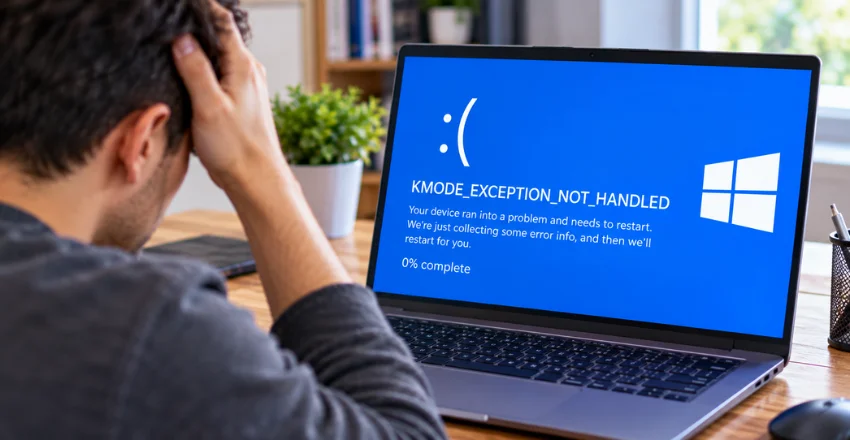
A restart loop can make ordinary troubleshooting difficult. In that situation, enter the Windows Recovery Environment and try Safe Mode. Removing the most recent problematic driver may restore normal startup. You can also use System Restore when a suitable restore point exists. This can reverse recent system changes without immediately resorting to a clean installation. Back up accessible personal files before major recovery work.
Avoid making several major changes simultaneously. Updating firmware, replacing drivers, changing memory settings, and removing software at the same time can hide the original cause. Make one controlled change and test the computer again.
Should You Disable Fast Startup?
Some troubleshooting guides recommend disabling Windows Fast Startup for this error. It may be worth testing when crashes occur during shutdown or startup. It should not replace investigating a driver Windows specifically identifies. Open the Control Panel and navigate to the power-button settings. Change the unavailable settings, then turn off Fast Startup if the option appears. Fully shut down the computer and test again.
On a laptop that crashes around sleep or power changes, it also helps to check laptop battery health. If disabling the feature makes no difference, continue with evidence-based driver and hardware checks. Fast Startup is not the universal cause of bug check 0x1E. The exact cause can differ significantly between computers.
How to Reduce Future Blue Screen Problems
Install drivers from Windows Update or the hardware manufacturer’s official support channels. Avoid utilities that promise to update every driver automatically. Incorrect or generic drivers can introduce compatibility problems. Keep Windows current and pay attention to when problems begin. Recording recent software, driver, firmware, and hardware changes makes troubleshooting easier later.
Creating restore points before major system changes can also provide a recovery path. Don’t ignore repeated blue screens even if the computer restarts successfully. Recurring crashes can signal an unresolved driver or hardware problem. Back up important files while the system remains accessible.
Fix the Cause Before Reinstalling Windows
KMODE EXCEPTION NOT HANDLED looks serious, but a clean Windows installation is rarely the best first move. Start with any driver named on the blue screen. Then use Safe Mode, driver checks, system repair, memory testing, and hardware isolation. Keep notes about each change and test afterward. This prevents troubleshooting from becoming guesswork.
It also makes recurring crashes much easier to diagnose. If the BSOD continues after these checks, preserve your crash dump files. A technician can analyze them to identify the failing driver or component. Back up important data before performing major recovery, firmware, or hardware work.
FAQs
Is KMODE EXCEPTION NOT HANDLED a hardware problem?
It can be, but hardware is not the only possible cause. Microsoft also identifies faulty drivers and system services as potential causes. Check recent driver and software changes before assuming a component has failed. Still test memory and newly installed hardware if driver troubleshooting fails. BIOS compatibility can also contribute in some situations. The evidence surrounding each crash should guide your next step.
Can RAM cause KMODE Exception Not Handled?
Yes, memory-related hardware problems can contribute to this blue screen. Microsoft recommends hardware diagnostics, especially memory testing, when troubleshooting bug check 0x1E. That makes RAM worth checking when crashes remain unexplained. Test before buying, since RAM prices have climbed lately.
Memory issues may also produce different stop codes over time. A basic Windows memory check is a reasonable starting point. If crashes continue, you may need more extensive diagnostics.
Can a graphics driver cause this error?
A graphics driver can cause kernel-level crashes when it becomes damaged or incompatible. This is especially worth investigating after a GPU driver update. Other drivers can cause the same stop message, however. Check whether the blue screen identifies a particular.sys file. Also consider exactly when the crashes occur. Failures during games or GPU-heavy workloads can provide useful context without proving the GPU is responsible.
How do I fix KMODE Exception Not Handled after a Windows update?
Start by identifying which driver or component changed with the update. Check Device Manager and your computer manufacturer’s support resources. Rolling back a recently changed driver may be appropriate. You can also use Windows recovery tools when the computer no longer starts normally. Safe Mode helps remove a troublesome driver. System Restore may help when a suitable restore point predates the problem.
Does KMODE Exception Not Handled mean Windows is corrupted?
Not necessarily. The stop message means Windows encountered an unhandled kernel-mode exception. Drivers, system services, memory, hardware compatibility, and firmware can all be involved. System file corruption is still worth checking after driver investigation. DISM and SFC provide built-in repair options. A complete Windows reinstall should usually come much later in the troubleshooting process.