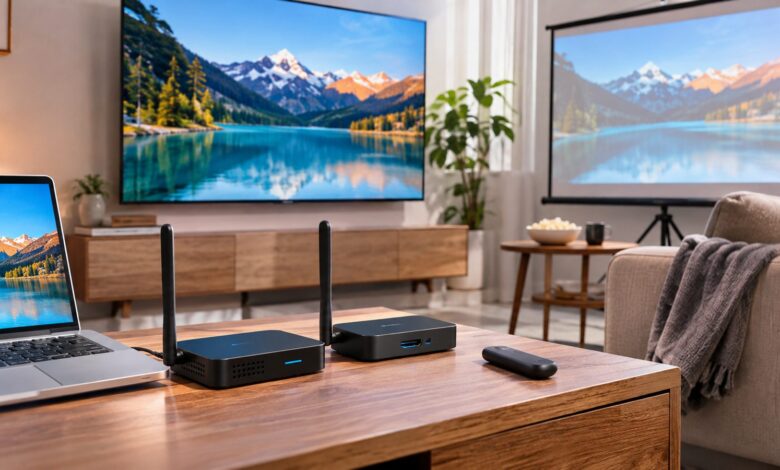
A wireless HDMI transmitter sends video and audio from an HDMI source to a distant display without a long cable. It works well for TVs, projectors, conference rooms, classrooms, and temporary setups. The right kit depends on resolution, refresh rate, latency, range, power, and content protection.
| Buying factor | What to check | Why it matters |
|---|---|---|
| Resolution | 1080p or 4K output | Determines visible detail |
| Refresh rate | 30Hz, 60Hz, or higher | Affects motion smoothness |
| Latency | Model-specific delay | Critical for gaming and live control |
| Range | Line-of-sight rating and room layout | Walls and interference can reduce distance |
| HDCP | Version support across the full setup | Protected content may fail without compatibility |
| Power | USB or wall power at both ends | Weak power can cause dropouts |
Quick answer: Choose a kit by matching the source and display first. Check the actual wireless resolution, refresh rate, latency, HDCP support, power needs, and realistic indoor range. Treat advertised distance as a best-case figure. For fast gaming or advanced home theater features, a wired connection can still be the safer choice.
What a Wireless HDMI Transmitter Does
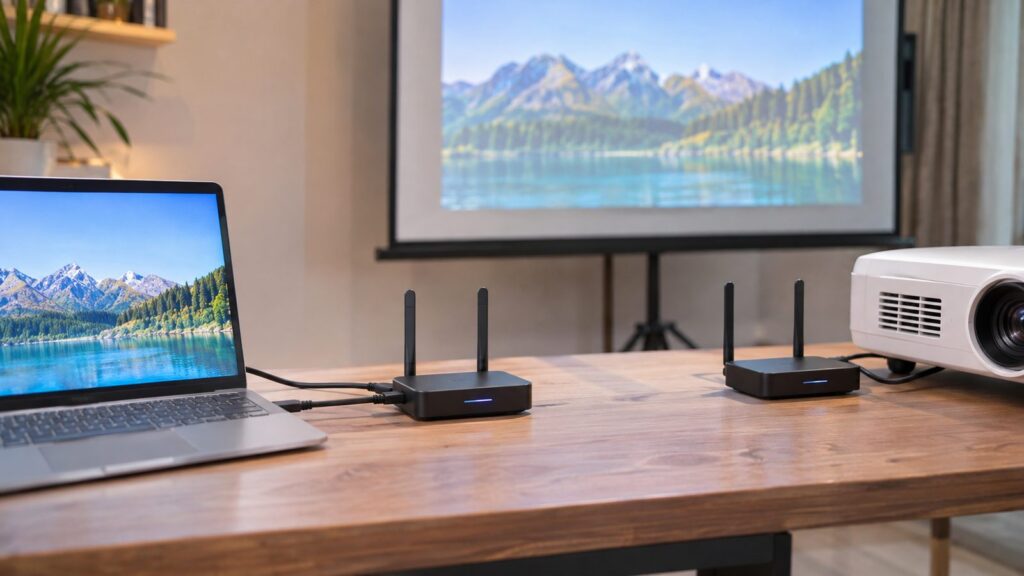
The transmitter connects to the HDMI output on a laptop, console, cable box, camera, or media player. A paired receiver connects to the HDMI input on your television, monitor, or projector. The wireless link replaces the long cable between those two points. Many dedicated kits create their own local radio connection instead of using your home internet connection. That makes setup simpler where network access is limited or unreliable. It also separates these products from app-based casting devices such as Miracast or AirPlay receivers.
7 Things to Check Before You Buy
1. Match the Actual Wireless Resolution
A large “4K” label does not always explain the complete output capability. One product may send 4K at 30Hz, while another supports 4K at 60Hz. Check the receiver’s delivered video mode instead of relying on packaging language. Your source and display must also support the selected resolution and refresh rate. A weak link can force a lower mode or prevent a picture. TechZena’s 1080p monitor guide explains why port-specific refresh limits matter on displays.
2. Treat Refresh Rate as a Separate Specification
Refresh rate affects how smooth motion appears during scrolling, video playback, and gaming. A 4K30 signal can look less fluid than 4K60 during fast movement. Always confirm both resolution and hertz in the manufacturer’s specification table. Modern gaming systems may also use features such as VRR and ALLM. The HDMI standard treats these as distinct features, not automatic benefits of every product. A wireless kit should name each supported feature if you depend on it.
3. Check Latency for Your Use Case
Latency is the delay between the source creating a frame and the display showing it. Movies and slides can tolerate more delay than competitive games or precise mouse work. Choose a model with a published latency figure when responsiveness matters. Do not assume “low latency” means zero delay. Encoding, transmission, decoding, and display processing can all add time. A wired HDMI connection remains safer for competitive gaming when response speed matters most.
4. Read Range Claims Carefully
Manufacturers usually state maximum distance under favorable conditions, often with clear line of sight. Walls, floors, metal cabinets, and nearby wireless equipment can reduce usable range. Buy enough margin for the real path between your source and screen. Model details matter a great deal here. One 4K60 model from a major kit maker lists 65 feet, while another lists 165 feet line of sight. TechZena’s WiFi extender versus booster guide covers related interference and placement concepts.
5. Verify HDCP and Protected Content Support
Streaming boxes, Blu-ray players, and other sources may use HDCP for protected video. The source, transmitter, receiver, and display must negotiate compatible protection. A desktop image working successfully does not prove every protected service will work. Check the exact HDCP versions listed by the product maker before buying. This matters most with commercial streaming devices or protected disc playback. Avoid vague compatibility claims and confirm the specification for your source.
6. Confirm Power Requirements at Both Ends
Wireless video still needs electrical power even when the long HDMI cable disappears. Many kits require USB power or separate adapters at both ends. A convenient HDMI port does not guarantee enough USB power nearby. Insufficient power can cause unstable pairing, flicker, or signal loss on some systems. Manufacturer support guidance often recommends proper external power for stable 4K operation on specific models. Check whether power adapters and cables are included in the package.
7. Check Audio, Connectors, and Extra Features
Video specifications receive attention, but audio support can create compatibility problems too. Check supported audio formats if you use an AV receiver, soundbar, or surround system. Also confirm whether the transmitter needs HDMI, USB-C video, or another source connector. If you only need wireless audio, a video kit may be unnecessary. TechZena’s Bluetooth receiver guide explains simpler audio-only options for speakers, stereos, and cars. Choose the technology that matches the signal you need to move.
Wireless HDMI vs Casting vs a Wired Extender
| Option | Best for | Main strength | Main trade-off |
|---|---|---|---|
| Dedicated transmitter kit | Moving an existing HDMI source | Works independently of many apps | Range and latency vary by model |
| Miracast or AirPlay receiver | Compatible phones and computers | Convenient screen sharing | Depends on platform support |
| HDMI over Cat6 | Permanent long-distance installations | Stable wired connection | Requires a cable run |
| Standard HDMI cable | Short and medium fixed runs | Simple and predictable | Cable may be difficult to route |
A dedicated kit fits when an existing HDMI source must reach another screen without a long cable. Casting is better when the source already supports a compatible wireless display method. Wired extenders suit permanent installations where reliability outranks convenience. For gaming, home theater, or critical presentations, compare the trade-offs before choosing wireless. High refresh rates, advanced HDR, eARC, and VRR may not pass through every kit. The product specification should confirm each feature you plan to use.
How to Set Up a Wireless Video Kit
- Connect the transmitter to the HDMI output on your source device.
- Connect the receiver to an HDMI input on the destination display.
- Supply the required power to both units using the recommended adapters.
- Select the correct HDMI input on the television, monitor, or projector.
- Wait for pairing, then confirm the expected resolution and audio output.
- Move the units closer if the picture drops or pairing becomes unstable.
Most pre-paired systems need little configuration once power and HDMI connections are correct. Problems often come from the wrong display input, weak power, unsupported video modes, or poor placement. Test the system at short range before installing it in its final location. After the first picture appears, check motion, audio synchronization, and protected streaming content. Then test the full planned distance with doors and room conditions unchanged. This approach can reveal practical limits before you mount or hide the equipment.
When a Wireless Kit Is a Good Choice
This category works well when running a long HDMI cable is difficult, temporary, or visually undesirable. Common examples include rented rooms, classrooms, conference spaces, trade-show booths, and projector setups. It can also help when a source cabinet sits away from the display. A wireless HDMI transmitter is less attractive when you need the lowest possible delay or advanced gaming features. Permanent installations may benefit from HDMI-over-Cat6 or another wired distribution method. The best option depends on whether convenience or guaranteed performance matters more. For U.S. buyers, return policy and support quality deserve attention because wireless performance depends heavily on the room. A product that works across one open room may struggle through dense walls elsewhere. Clear specifications and flexible returns can reduce the risk of a poor fit.
Common Buying Mistakes to Avoid
The first mistake is buying from the largest range number without checking conditions. Another is assuming every 4K product supports 4K60, HDR, or gaming features. Buyers also forget power needs until the units are already installed. People also confuse dedicated HDMI transport with screen casting. They solve overlapping problems, but their source requirements differ. Trace the signal from source to display before choosing any wireless accessory.
Frequently Asked Questions
Does a wireless HDMI transmitter need Wi-Fi?
Many dedicated kits create their own direct wireless link and do not require home Wi-Fi. Casting receivers may use different network or platform methods. Check the product documentation because the term covers several technologies.
Can it work through walls?
Some systems can work through walls, but obstacles reduce signal strength and usable range. Metal, concrete, floors, and nearby wireless traffic can cause more problems. Treat line-of-sight ratings as best-case figures rather than indoor guarantees.
Is wireless HDMI good for gaming?
It can suit casual gaming when latency is low enough for the player. Competitive games are less forgiving because small delays can affect control timing. Wired HDMI is safer when minimum latency is the priority.
Can I send one source to multiple TVs?
Some systems support additional receivers, while many basic kits are one-to-one. Do not assume multi-display support from the product category alone. Confirm the maximum receiver count and supported operating mode before buying.
What should I check first before ordering?
Start with the source output and display input, then match resolution and refresh rate. Next, check latency, HDCP, range, power, audio, and any required gaming features. This order prevents you from paying for specifications that cannot work with your equipment.
Final Recommendation
Choose a kit by matching the complete signal path instead of shopping by one headline specification. Resolution, refresh rate, latency, range, HDCP, power, and audio must work together. A shorter-range product can be better if its documented features match your setup. Use wireless when cable routing is the real problem and the feature trade-offs are acceptable. Choose wired HDMI or a wired extender when you need maximum responsiveness and predictable performance. Check TechZena’s related hardware guides before building the rest of your display setup. —